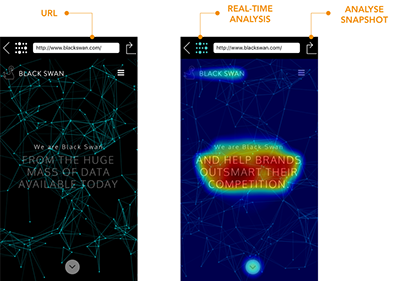
Select the real-time analysis at the top of the screen, this overlays enables the heat map saliency visualisation
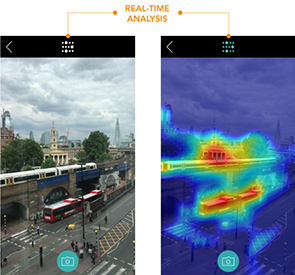
Take a picture by selecting the camera button at the bottom of the screen, this takes a temporary picture, from here you can
- Save a copy of the image
- Go back to real-time view by selecting the Cancel button
- Click on the Analyse Picture button to launch the Analysis options to enable the interactive features
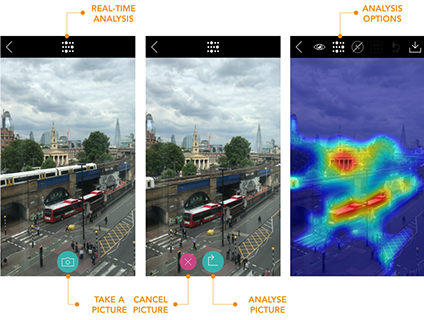
IMAGE ANALYSIS
Analysis of static image based content.
Upon selection, the app presents an in-app image browser based content within you devices iOS ‘Photos’ albums. From here you can select the image you would like to analyse or select the album heading in the top right to change to your preferred photo album.
Once the image has been selected, the app will automatically run a image through the Dragonfly model and present the results in the Anlysis Options page
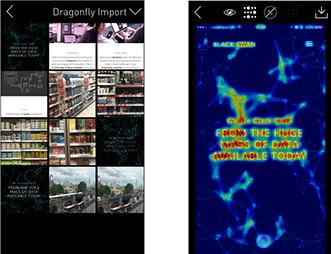
URL ANALYSIS
Live analysis of web based content.
Browse to any website via the in-app browser and analyse in real-time
Continue browsing through the site whilst in analysis view or take a snapshot for further analysis
A/B TESTING
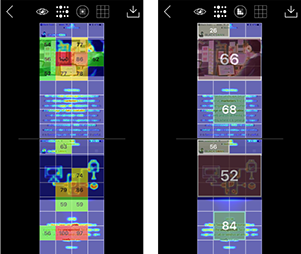
The A/B testing feature enables comparison of visual elements across multiple creative options.
Upon selecting the A/B Testing feature, a set up screen will allow you to select your images from the devices iOS ‘Photos’ albums
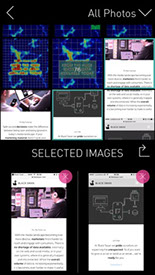
Please ensure the two images for analysis are identical in image size and and aspect ration format. If the image sizes are not identical the app will crop second image to the same size and aspect ratio format as the first image
Once the image has been run through the Dragonfly model you can analyse both options using all the analysis tools.
Any region selected will also be selected on the other image for comparison